How to stream to YouTube with OBS: a beginner’s setup for sports events
OBS Studio is the free app almost every live streamer uses, and YouTube is where your club’s players, parents and fans already are. This guide connects the two from scratch, a brand-new channel included. It finishes with the step most streaming guides skip: turning one long recording into a replay for every match.
The short answer:
- In YouTube Studio, choose Create → Go live and verify your channel. Activation can take up to 24 hours.
- In OBS, go to Settings → Stream, choose YouTube - RTMPS and either Connect Account or paste your stream key.
- Set 1920 × 1080 at 30 fps and a bitrate your upload can handle.
- Add your camera and scoreboard, then click Start Streaming.
Step 1: Turn on live streaming in YouTube
Do this first, and at least a few days before your event, because of the wait.
- Sign in to YouTube with the account that owns the channel you’ll stream to. If your club doesn’t have a channel yet, create one under the club’s name, not your personal one.
- Open YouTube Studio (studio.youtube.com) and click Create → Go live in the top right.
- YouTube asks you to verify the channel with a phone number. Enter the code it sends.
- Wait. The first time, live streaming can take up to 24 hours to switch on. After that it’s available whenever you need it.
Streaming from a computer with OBS has no subscriber minimum. The minimum you may have read about only applies to going live from the YouTube phone app.
Step 2: Connect OBS to YouTube
Download OBS Studio from obsproject.com (Windows, Mac and Linux, free). The first time it opens, the auto-configuration wizard offers to pick settings. Choose “Optimize for streaming”.
Then open Settings → Stream, set Service to YouTube - RTMPS, and choose one of these:
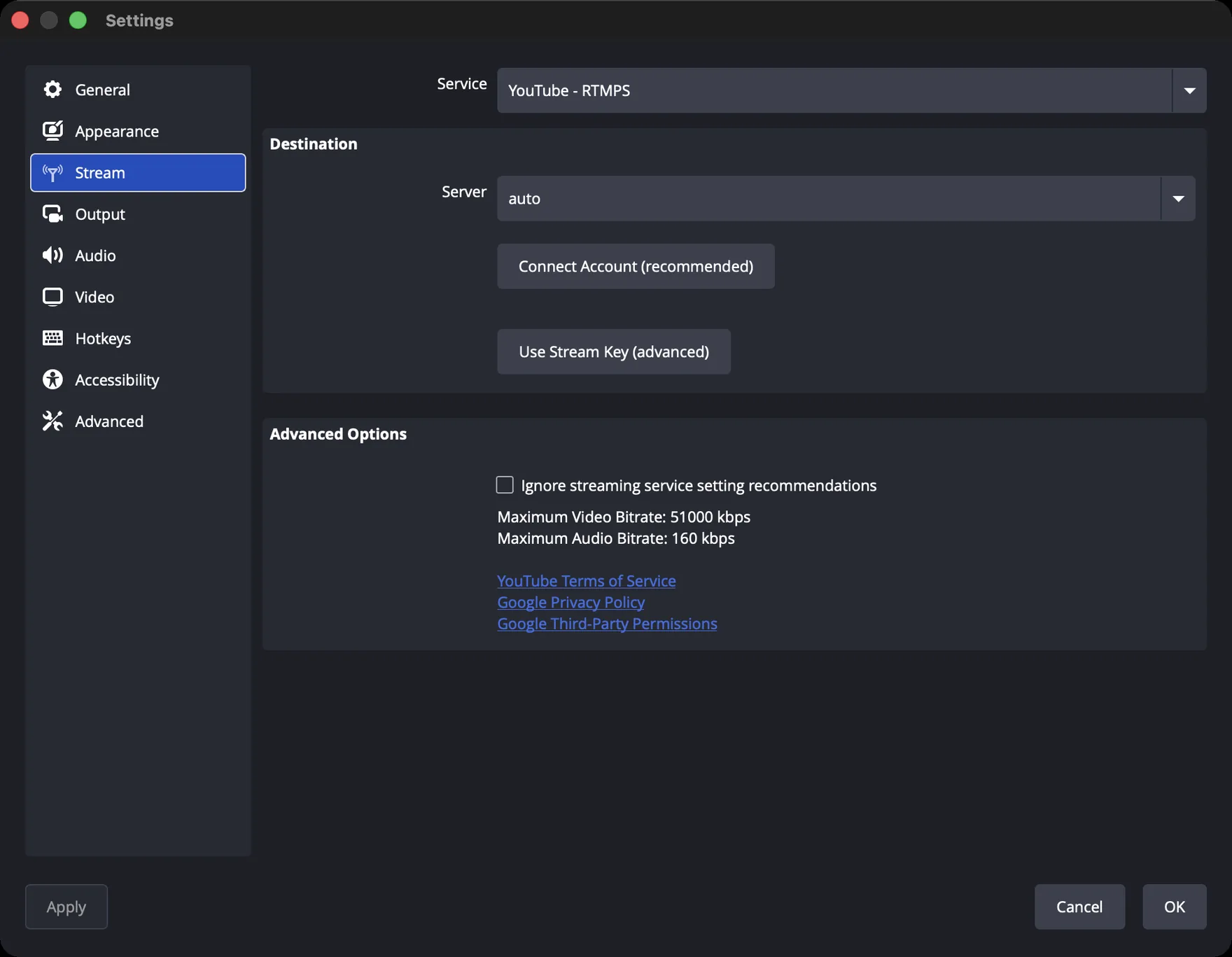
Option A: Connect Account (easiest)
Click Connect Account (recommended) and sign in with Google in the window that opens. OBS can then create the broadcast for you, with title, description and visibility, through the Manage Broadcast button in the Controls panel. You never touch YouTube Studio on the day.
Option B: Stream key
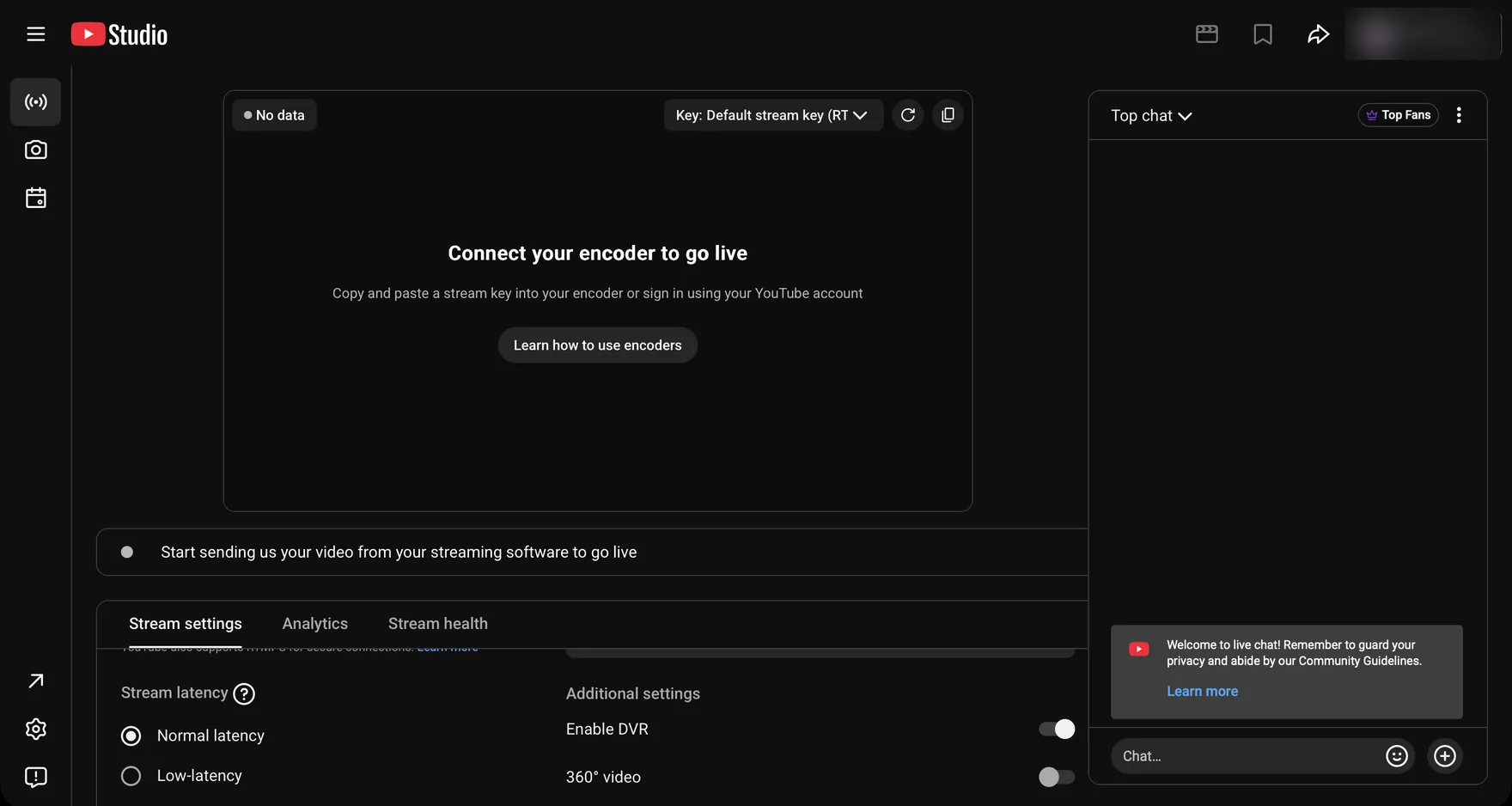
In YouTube Studio go to Create → Go live. In the Live Control Room, copy the stream key with the copy button next to “Key: Default stream key”, then choose Use Stream Key (advanced) in OBS and paste it in. This is the more reliable option on a borrowed or shared laptop.
Anyone with your stream key can broadcast to your channel. Don’t screenshot it into a group chat, and reset it in YouTube Studio if it ever leaks.
Step 3: The OBS settings that matter
The wizard gets you most of the way. Check these in Settings. For Output, switch Output Mode to Advanced to see them all.
| Setting | Where | Use |
|---|---|---|
| Base (Canvas) Resolution | Video | 1920 × 1080 |
| Output (Scaled) Resolution | Video | 1920 × 1080, or 1280 × 720 on slow internet |
| Common FPS Values | Video | 30. Smooth enough for badminton and half the data of 60. |
| Video Encoder | Output → Streaming | A hardware encoder if listed (NVIDIA NVENC, AMD, Intel Quick Sync or Apple VT), otherwise x264 |
| Rate Control | Output → Streaming | CBR |
| Bitrate | Output → Streaming | 1080p: 5,000–14,000 kbps · 720p: 3,000–8,000 kbps (see below) |
| Keyframe Interval | Output → Streaming | 2 s |
| Audio Bitrate | Output → Audio | 128 kbps |
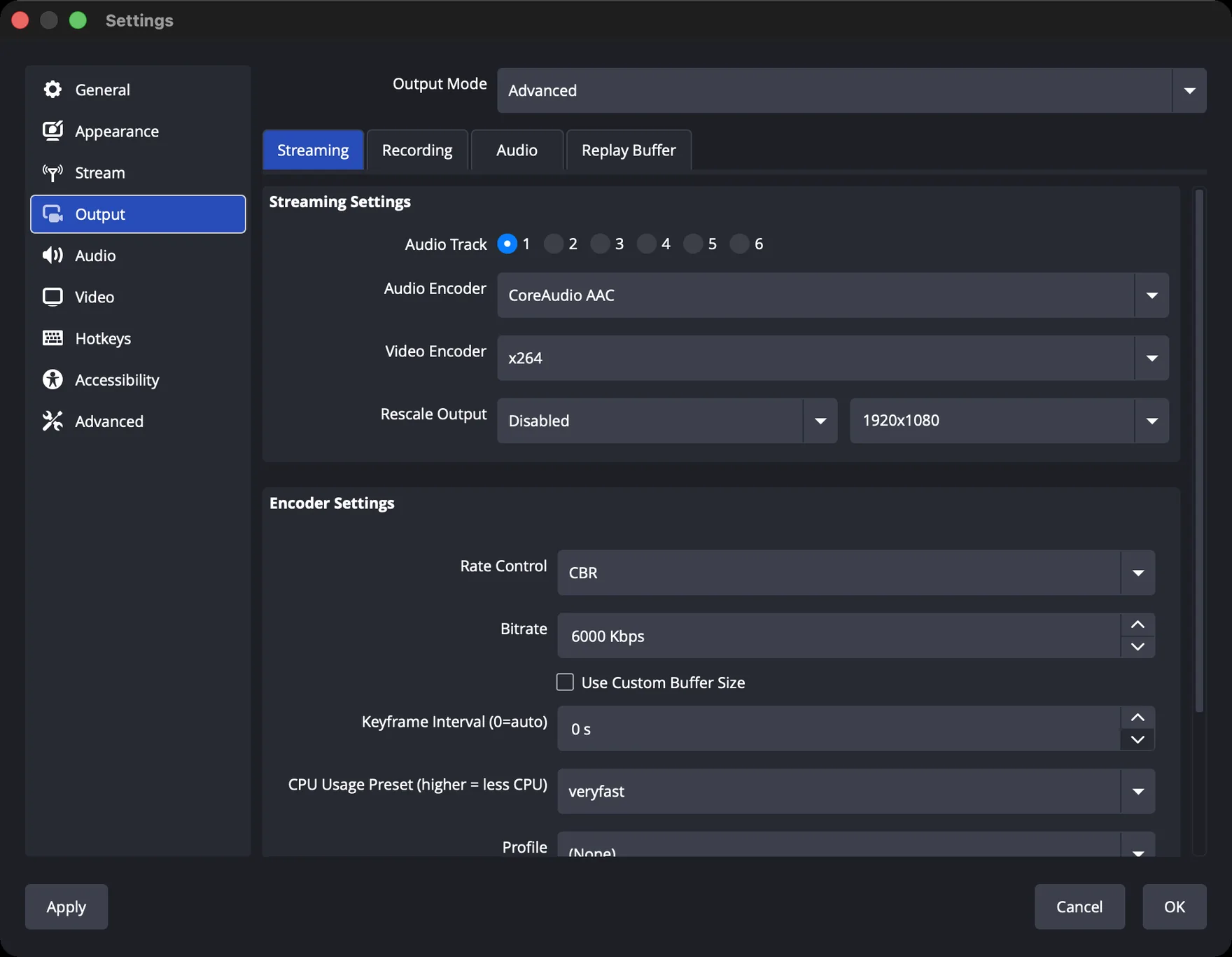
The bitrate ranges are YouTube’s own minimum and recommended figures for H.264. Go as high as your upload speed allows, leaving about a third spare. The upload-speed calculator works out the number for you.
Step 4: Build your scene
A scene is one layout of your stream. For a tournament, one main scene is enough:
- Camera: Sources → + → Video Capture Device, and pick your phone (via its webcam app), capture card or camera. Right-click → Transform → Fit to screen.
- Sound: check that the audio meter in the Audio Mixer moves when you clap. If it doesn’t, add the camera’s audio with Sources → + → Audio Input Capture.
- Scoreboard: Sources → + → Browser, with your court’s GameOnn overlay link at 1920 × 1080, above the camera in the list. The full walkthrough is in How to add a live badminton scoreboard to your livestream.
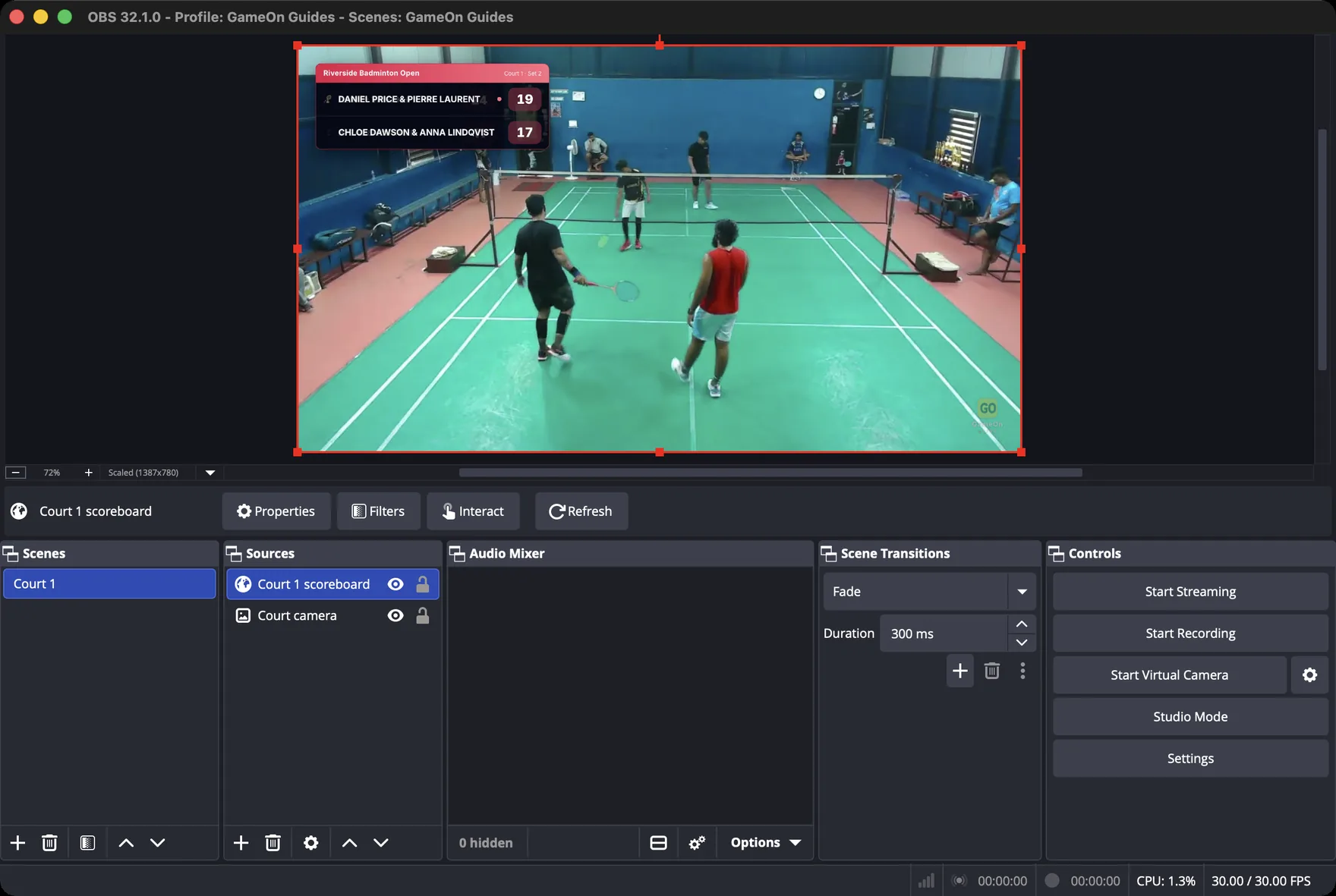
Optional: a second “Starting soon” scene with your club logo and the same Browser source, which shows the tournament board, to run in the minutes before the first match.
Step 5: Go live
- Set the details. With Connect Account, use Manage Broadcast in OBS. With a stream key, use the Stream tab in YouTube Studio. Give it a title people would search for, such as “Riverside Badminton Open 2026: Court 1 LIVE”.
- Choose visibility.Public for the real thing, or Unlisted if you only want people with the link watching (good for test runs).
- Choose latency.Normal latency gives the best picture quality. Viewers are a few seconds behind the hall, which doesn’t matter for sport you aren’t chatting through.
- Click Start Streaming in OBS. Within a few seconds YouTube Studio shows a preview and the stream health. Aim for “Excellent” or “Good”.
Step 6: Link the stream to GameOnn so every match gets a replay
This is the step that turns a seven-hour video into something people rewatch. GameOnn already records when every match starts. Tell it when the stream started and where the video lives, and each match page plays the recording from that match’s first rally.
- Open your tournament in GameOnn and go to Manage → Streams.
- Under the court you’re streaming, paste the YouTube watch link (
https://www.youtube.com/watch?v=…) into Stream URL and click Save. - Right after you go live, press Now next to Stream started at, then Save.
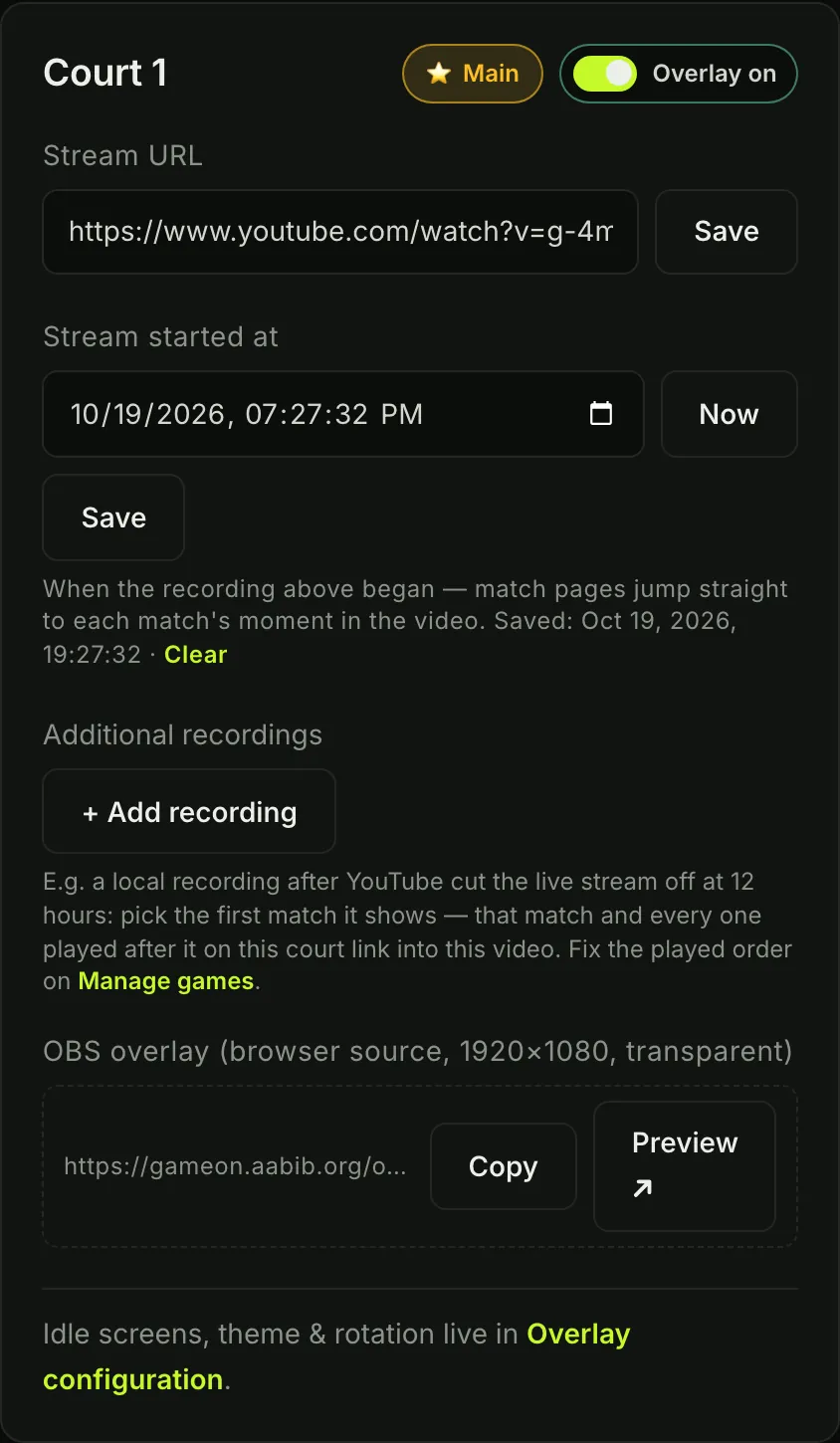
That’s it. Match pages now show the video, starting at the right moment, so anyone following the tournament on GameOnn gets the scorecard and the video in one place.
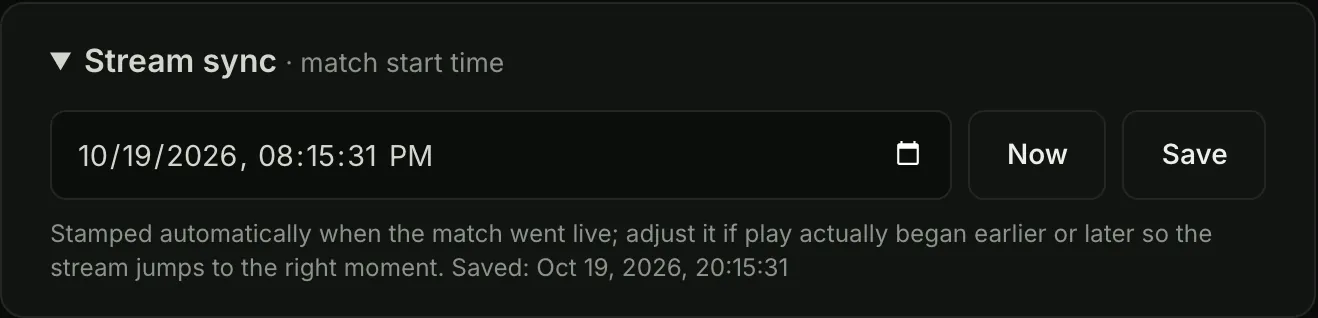
Open that match’s page and expand Stream sync. Adjust its start time, or press Now at the first serve. It only affects that one match.
Long tournament days and YouTube’s 12-hour limit
YouTube only keeps a live stream as a replay if it’s under 12 hours. For a full day of badminton there are two safe habits:
- Split the day. End the stream at the lunch break and start a new one. Then add the second video to GameOnn as an additional recording (below).
- Record locally as a backup. Click Start Recording in OBS as well as Start Streaming. If YouTube’s copy is cut short, upload the local file afterwards.
Either way, in Manage → Streams click + Add recording under the court, paste the new video’s link, pick the first match it shows, and enter where that match begins in the video. That match and every later one on the court then point to the new video.
Your go-live checklist
Tick through this on the day. It’s saved in your browser, so you can open it on the laptop you’re streaming from.
Not sure where the camera goes, or how much internet you need? Start with How to livestream badminton to YouTube.
Frequently asked questions
How long does it take to enable live streaming on YouTube?
After you request it in YouTube Studio and verify your channel with a phone number, it can take up to 24 hours the first time. After that you can go live whenever you want, so turn it on a few days before your event.
Do I need 1,000 subscribers to live stream on YouTube?
Not when you stream from a computer. Streaming with an encoder such as OBS has no subscriber minimum. Only going live from the YouTube phone app requires a minimum number of subscribers.
Where do I find my YouTube stream key?
In YouTube Studio, choose Create, then Go live. In the Live Control Room, the copy button next to “Key: Default stream key” copies it, ready to paste into OBS. Treat it like a password: anyone who has it can broadcast to your channel.
What bitrate should I use in OBS for YouTube?
YouTube recommends 8 Mbps for 720p and 14 Mbps for 1080p at 30 frames per second with H.264, with minimums of 3 and 5 Mbps. Use the highest bitrate your upload speed can comfortably sustain, keeping roughly a third of your upload spare.
Can I stream several courts to one YouTube channel at once?
Yes. Each court needs its own camera and encoder, and its own stream key in YouTube Studio. In GameOnn, save each court’s YouTube link separately so every match page plays the right video.
How do I give each match its own replay link?
Save the stream’s YouTube link and the time the stream started under Manage, Streams in GameOnn. GameOnn then knows where each match begins in the recording, and every match page plays from its first rally.